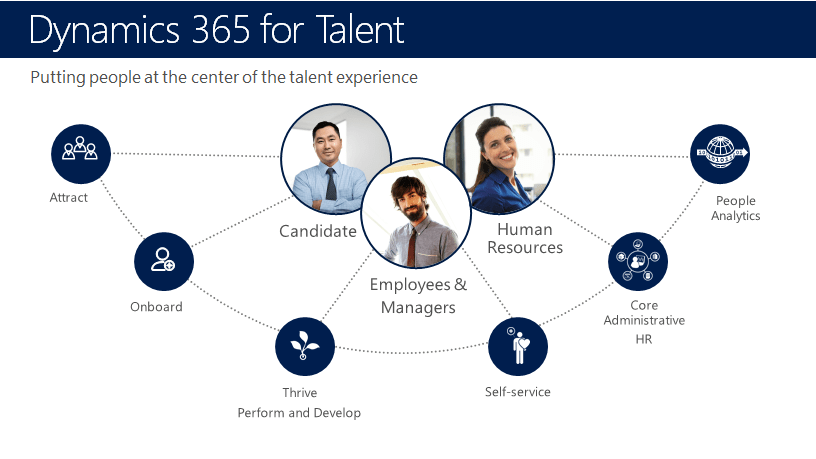
Hiring a new employee is not just about interviewing an individual and recruiting the same, but includes a lengthy and step by step, administrative process. This process includes attracting the right candidates, viewing their resumes, calling in for interview and thereafter, making the offer. By the virtue of Microsoft Dynamics talent, all these processes are streamlined. Here we will discuss the easy steps to follow in the ‘Attract’ module of Dynamics 365 Talent, to cover the entire process.
What is Microsoft Dynamics 365 Talent: Attract?
Attract is one of the modules included in Microsoft Dynamics 365 Talent implementation. It is different from the other two modules namely “Onboard” and “Human Resource” of Talent. The home screen of Attract displays a simple layout with a list of active jobs. These listings are to be filled.
This is where the entire process starts:
First you have to click on the job that you wish to fill. From this point you can select candidates and add job information. From this point onward, you follow the systematic steps of Microsoft Dynamics 365 Talent upgrade to make the final offer. The steps are as follows:
- Application: managing the application process becomes really easy with Dynamics 365 Talent . Once you reach the Job screen of the app, you have to select one of the applicants and start moving them forward through the pipeline. It has two crucial buttons on the right of the header: “Advance stage” and “Reject”. As the title suggest, you can select the right one to move the candidate forward or remove the same from the following process.
- Screening: the screening process includes of one really easy step and that is to choose some convenient dates, which are going to be emailed to the candidate automatically. Once a date gets confirmed, you can conduct a screen with the chosen candidate. You can also rearrange the date in case your other team members are unavailable. Thus, you carry on with the screening, gather the necessary information and decide whether you want to take the candidate to the next step or not.
- Interview: the interview stage is not very different from the screening stage in Dynamics 365 Talent. Here too, you will select dates and wait for confirmation on the candidate’s part to conduct the full interview. Here you summon the team members involve in the hiring and interviewing process. This process is made simple by the active directory where your team’s schedule appears in a calendar. Thus you can sleet the convenient date and send in the relevant details.
- Offer: the “Offer” screen lets you make notes, prepare offer and send emails to the candidates, asking them to contact the hiring manager. On receiving the verbal confirmation, you can click on the “Offer accepted” option and carry on with the on boarding process.
 Microsoft Dynamics 365 Talent